> ## Documentation Index
> Fetch the complete documentation index at: https://docs.getkardy.com/llms.txt
> Use this file to discover all available pages before exploring further.
# Print and display your join QR
> Prepare an outlet QR, print an A6 counter insert or poster, and test it where customers will scan.
export const GuideChecklist = ({guide, title, items}) => {
const [checked, setChecked] = useState([]);
const [storage, setStorage] = useState("Progress stays in this browser only.");
useEffect(() => {
try {
const value = JSON.parse(localStorage.getItem(`kardy-guide-v1:${guide}`) || "[]");
setChecked(Array.isArray(value) ? [...new Set(value.filter(i => Number.isInteger(i) && i >= 0 && i < items.length))] : []);
} catch {
setStorage("Browser storage is unavailable. Progress lasts until you leave this page.");
}
}, [guide, items.length]);
const save = next => {
setChecked(next);
try {
localStorage.setItem(`kardy-guide-v1:${guide}`, JSON.stringify(next));
} catch {
setStorage("Browser storage is unavailable. Progress lasts until you leave this page.");
}
};
return
YOUR CHECKLIST
{title}
{checked.length} / {items.length}
{items.map((item, index) => )}
{checked.length === items.length ? "Checklist complete. This is a personal reminder, not a system readiness check." : storage}
;
};
**Where:** Merchant workspace → **Branding → QR sign**.
Choose your outlet, prepare the sign, then print and test one copy before making more.
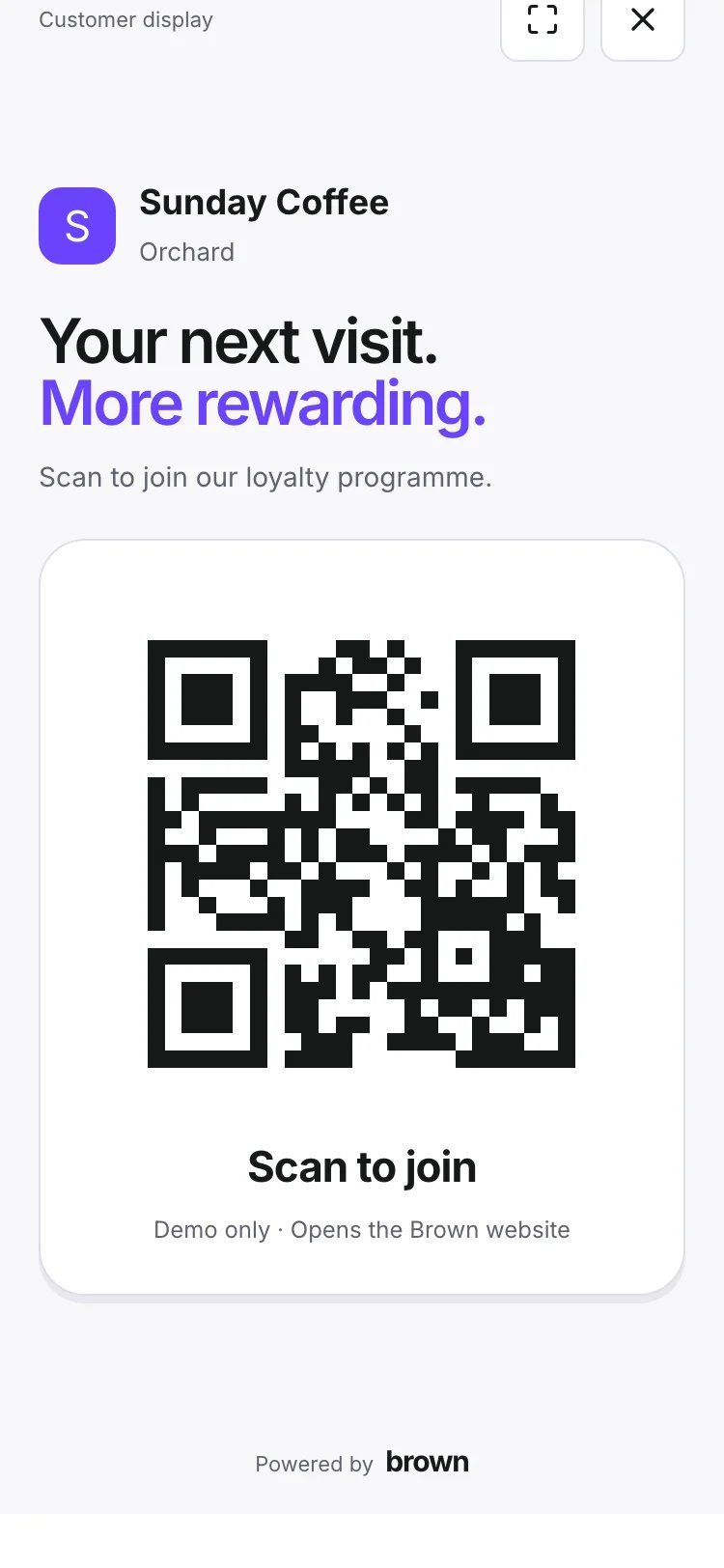
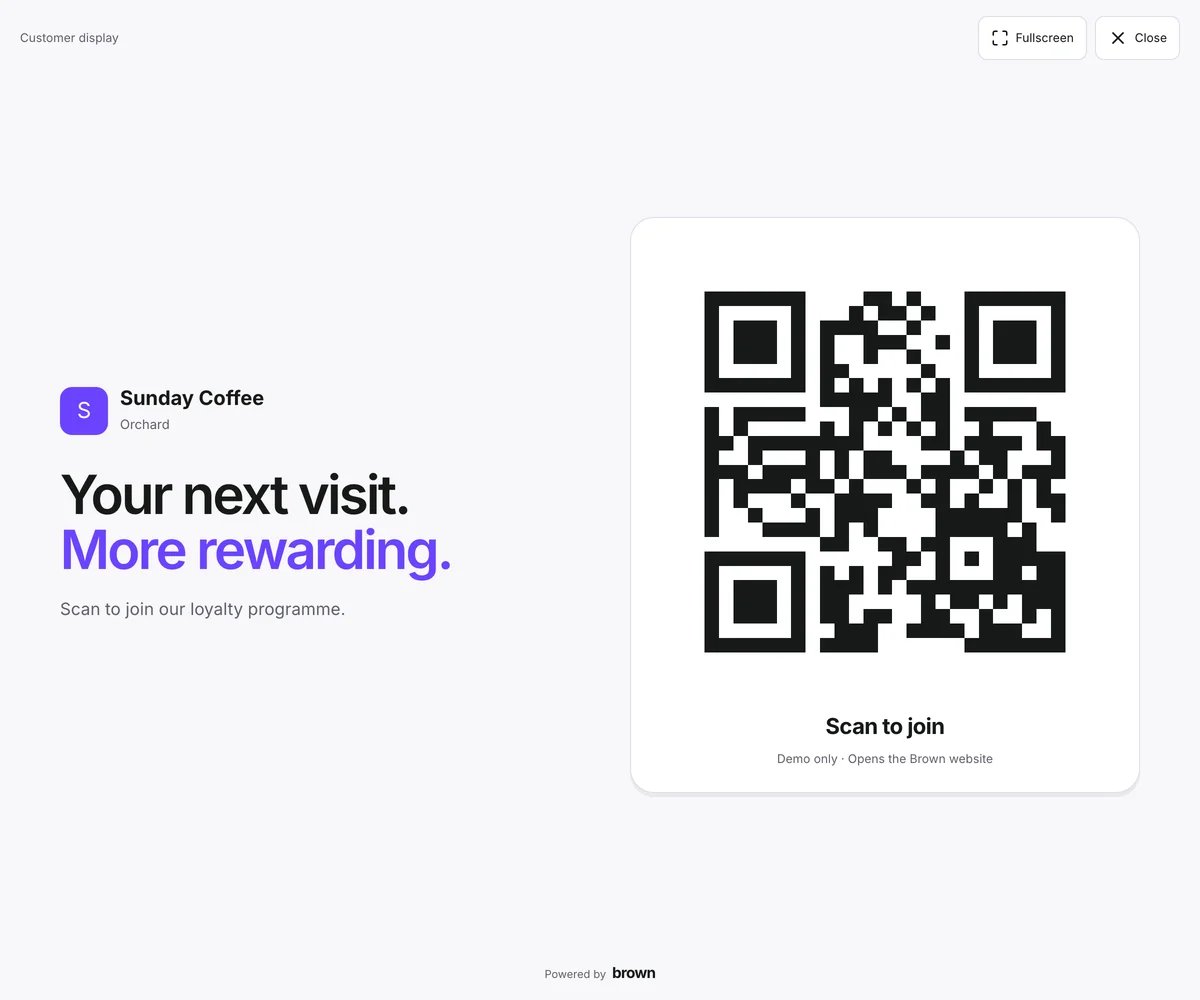
You can also show the same join QR on a supervised phone or laptop.
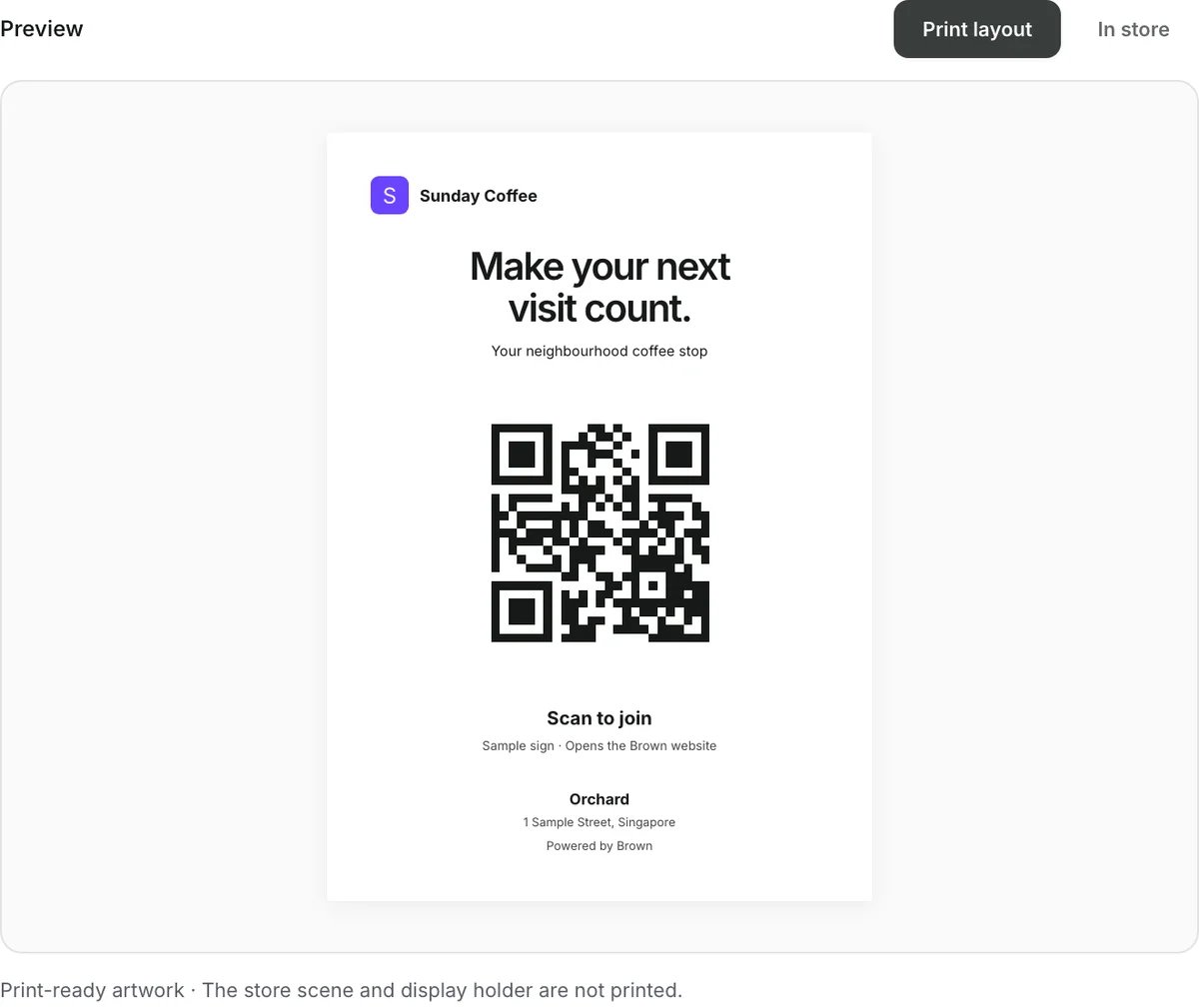
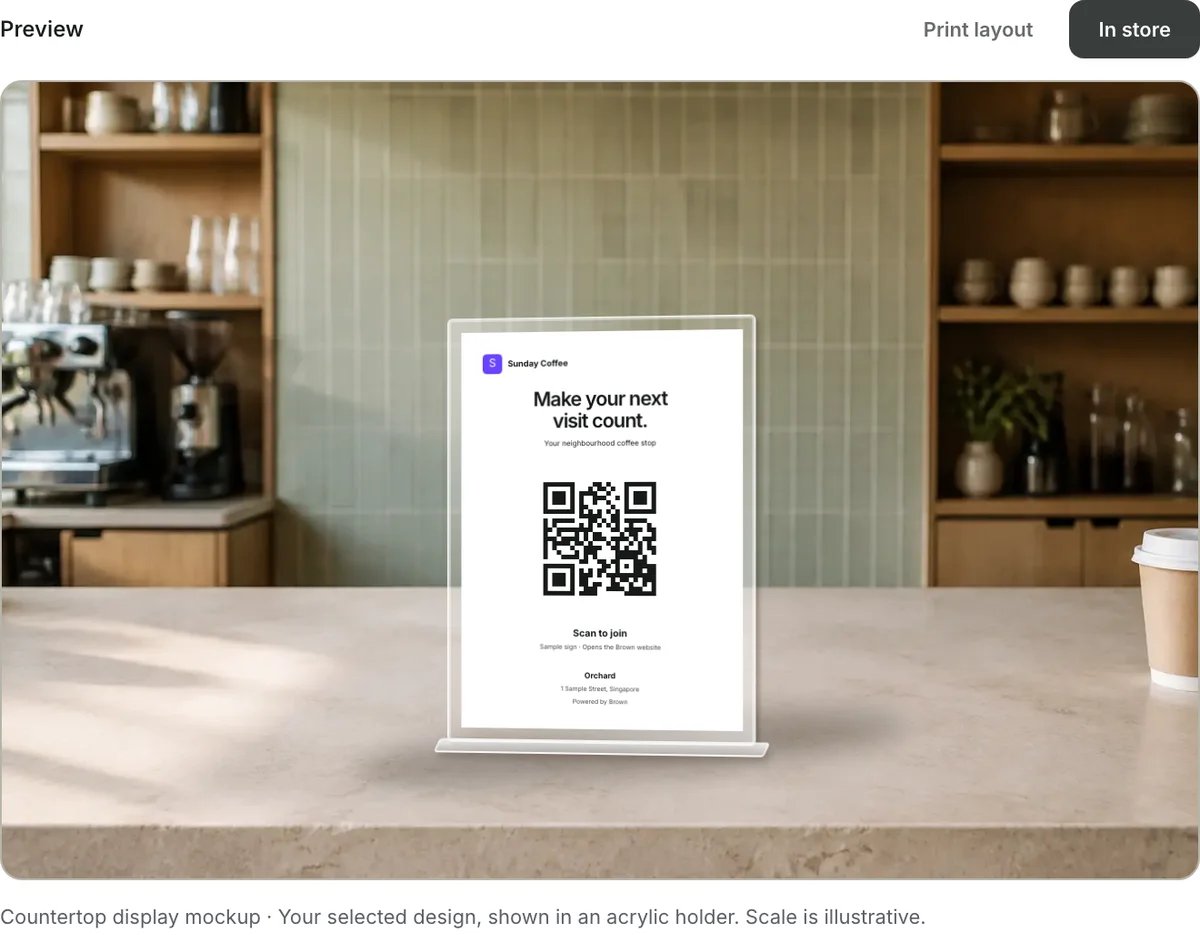
The images below are captured from Kardy’s actual **Branding** page using
fictional Sunday Coffee demo data. Demo QR codes open the Kardy website, not a
live membership. Use your own workspace’s QR for customers. Display holders
are illustrative, not supplied.
## What the QR does
Customers scan this **public join QR with their phone camera**, open your programme’s
join page, and create or sign in to their Kardy account to join. An outlet-specific
link records the joining outlet. It does not award a stamp or prove a purchase.
On a qualifying purchase, the customer shows their **personal membership QR** and
staff scan it in the merchant workspace, then confirm the action. Those are two
different QR uses. Continue to [scan, stamp and redeem](/merchants/scanning) for staff steps.
## Prepare your sign
Switch to the correct organisation and open **Branding → QR sign**.
Under **Store location**, choose the outlet where the sign will be displayed.
Kardy initially selects **All locations**. Choose an active outlet for an outlet-specific sign.
Choose **All locations · Brand sign** for a brand-wide sign without an outlet
address or signup-outlet attribution. Prepare each outlet’s sign separately.
The sign uses a fixed Kardy design and colours. Storefront and wallet-card
colours remain customisable separately and do not affect printed signs.
The sign uses your merchant name and logo; update saved branding separately
if those details are wrong. Under **Sign text**, edit the **Headline**,
**Supporting text**, **Scan label** and **Instructions**. The supporting text
starts with your brand tagline. Changes appear in the print layout, counter
mockup and phone/laptop display without changing the QR destination.
Clear supporting text or instructions to hide them. Blank headlines and scan
labels fall back to default wording. **Reset text** restores the defaults.
Text edits are not saved after leaving this page: print or save a PDF to keep
your customised sign. Character limits help the text fit every print format.
QR ink is fixed to dark ink on white for readability.
Do not crop away the white space around the code.
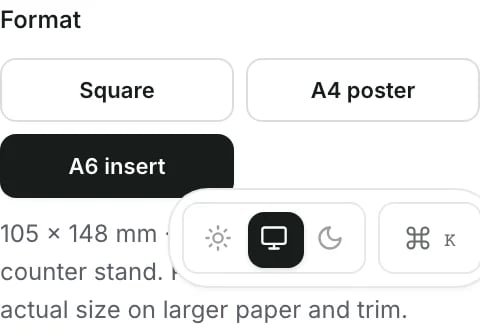
| Format | Use it for | Print output |
| --------- | ------------------------------------------ | ------------------------------------------ |
| A6 insert | Small counter holder or replaceable sleeve | 105 × 148 mm portrait page |
| A4 poster | A wall, entrance or larger counter display | A4 page, with artwork inside print margins |
| Square | A square composition on a larger sheet | 180 × 180 mm artwork on A4; trim if needed |
Measure the holder’s **insert pocket**, not its outside dimensions. A6 describes
the paper, not the size of a base or sleeve.
Use **Print layout** to inspect the artwork. Use **In store** to see it in the
counter-holder mockup. Both reflect your selected design and format; the store
scene is illustrative and is not printed.
Read the brand, outlet name and address. Scan the preview with a separate phone
and check that it opens the intended brand’s join page. **Copy link** gives you
the same destination for a manual check.
## Print and fit the insert
**A holder is optional.** If you want one, buy your own from a stationery shop or an
online marketplace such as Shopee. Match the holder to your selected print format:
| Your format | Search for | Check before buying |
| ----------------- | ------------------------------------------------------ | ---------------------------------------------------------------------------------------------------- |
| A6 insert | “A6 acrylic sign holder portrait” | Pocket fits 105 × 148 mm paper. |
| A4 poster | “A4 acrylic sign holder portrait” or “A4 poster frame” | Pocket fits the full 210 × 297 mm sheet, including print margins. |
| Square, untrimmed | “A4 acrylic sign holder portrait” | Keep the A4 sheet intact; the 180 × 180 mm artwork sits within it. |
| Square, trimmed | “180 × 180 mm square sign holder” | Confirm an exact usable pocket fit before trimming. A generic 20 × 20 cm holder is not an exact fit. |
Choose a holder that lets you slide the paper out for replacement. Check the
**usable insert pocket**, not just the outside dimensions or the listing title.
An L-shaped or T-shaped holder can work; a complete acrylic holder normally does not
need a separate sleeve. Confirm the selected size with the seller before ordering.
Kardy does not supply the holder shown in the preview.
1. Select **Print / save PDF**. Save a PDF to send to your printer, or select a physical printer.
2. Use **100% / Actual size**, not Fit to page. Turn browser headers and footers off.
3. For A6, use **105 × 148 mm** paper where supported. Alternatively, print the A6 PDF
at actual size on a larger sheet and trim the paper to A6. Check the PDF viewer’s settings too.
4. Print one sample and measure it. Browser and printer options differ; check that
the result has not been enlarged, reduced or clipped before printing a batch.
5. Slide the paper into your clear sleeve or holder, keeping the full QR and its white
border visible. Choose paper that fits the pocket; thick card is optional, not required.
For a 3D-printed stand, print **the base**, then use a separate clear pocket and paper
insert. Fit the slot to the actual pocket’s thickness. Kardy exports sign artwork;
it does not provide a printable 3D model or verify your stand’s stability.
## Place it and test it
Put the sign where customers can comfortably point their phone camera, such as beside
the till. Keep the code unobstructed and move or tilt the holder if lighting creates
reflections. Do not place another sticker or logo over the QR.
Test the **finished sign inside its holder**, not just the on-screen preview:
* Scan from the position where a customer will stand, ideally with an iPhone and an Android phone.
* Confirm the correct brand and outlet destination.
* Check that the join page is usable and your programme is ready for customers.
* Tell staff: the sign helps people **join**; stamps still require a confirmed staff action.
When you change a destination, outlet details or artwork, export a fresh sign and
test it again. A paper insert does not update when workspace settings change.
## Use a screen instead
Choose the outlet, then select **Phone screen** or **Laptop screen** under
**Display on a screen**. This opens the join QR on your **current device**—it does
not send the display to another device. Open Branding on the device you want to use.
**Appearance** defaults to **Match printed sign**, using the same design, format,
text and QR colour. Choose **Screen layout** for the layouts illustrated below.
Choose **Display size** before opening the display. Background colours are fixed.
These screen settings and text edits are session-only; they are not saved.
Use **Hide / Show** to fold settings without losing the current values.
Choose **Fullscreen** where supported; otherwise the display still works in the browser.
Use **Close** to return to Branding. Escape exits the display outside browser fullscreen;
in fullscreen, the browser may use the first Escape to leave fullscreen first.
Paper-size choices affect **Match printed sign**, but not the
alternative **Screen layout** composition. Both share your edited sign text.
Keep the device awake, bright enough to scan and supervised. This is **not a
locked kiosk**: closing the display returns to the signed-in workspace. Kardy
does not automatically prevent sleep. Do not share a merchant login with
customers.
## If something looks wrong
| Problem | What to check |
| ----------------------------------- | -------------------------------------------------------------------------------------------- |
| A6 does not fit the holder | Measure the pocket and printed paper; check Actual size in both the browser and PDF viewer. |
| The QR is hard to scan | Keep dark ink and the full white border; remove glare, damage or anything covering the code. |
| It opens the wrong place | Check the organisation, Store location and Join link, then export again. |
| It opens Kardy’s website | Check whether you printed a demo sign rather than your live workspace sign. |
| A new member did not receive stamps | Joining alone does not issue stamps; staff must confirm the qualifying action. |
| Fullscreen is unavailable | Use the browser display view; it has the same join QR. |
**Done when:** a customer can scan the finished display, reach the intended join page,
and understand what to do next.