> ## Documentation Index
> Fetch the complete documentation index at: https://docs.getkardy.com/llms.txt
> Use this file to discover all available pages before exploring further.
# QR signs
> Print a branded join sign for one outlet or your whole programme.
**Where:** Merchant workspace → **Branding → QR sign**.
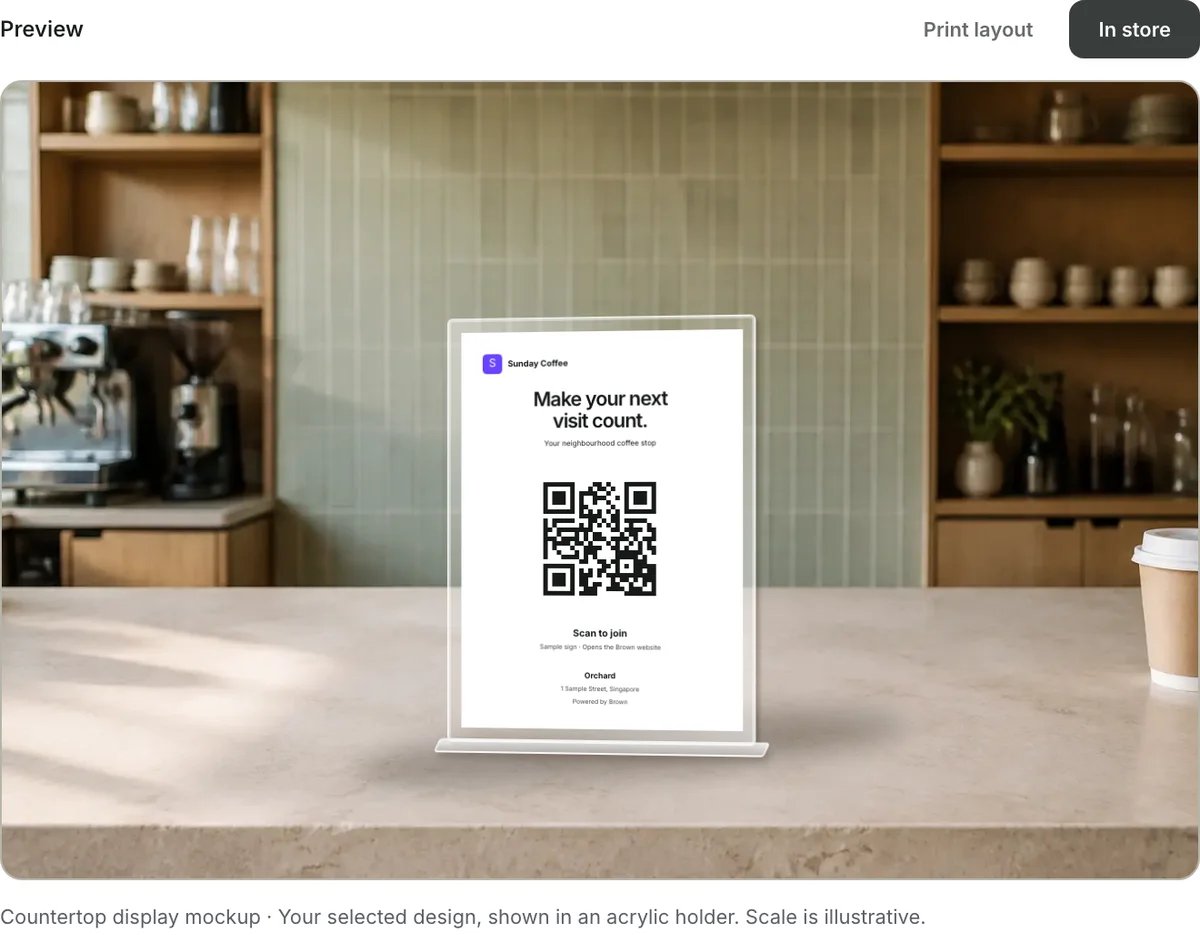 Create a sign that sends customers to your programme's join page. This is a public
join QR, not the private membership QR staff scan to issue stamps.
## Sign controls
| Control | What it changes |
| ------------------------------ | ------------------------------------------------------ |
| Sign text | Headline, supporting text, scan label and instructions |
| Square, A4 poster or A6 insert | The output format; A6 is 105 × 148 mm, portrait |
| Store location | Adds the selected active outlet's name and address |
| All locations | Produces a brand-wide sign without a store address |
| Phone screen / Laptop screen | Opens the join QR on your current device |
## Fold sections and edit text
Sign design and colours use fixed Kardy branding, with dark QR ink on white.
Merchant brand colours do not change the sign. Storefront and wallet-card
customisation remain available separately.
Use **Hide / Show** on a settings section to fold or reopen it without losing its
current values. Folding settings does not remove that content from the sign.
**Sign text** controls the headline, supporting text, scan label and instructions.
Clear supporting text or instructions to hide those lines. Blank headlines and
scan labels use default wording. Text edits are not saved; print or save a PDF
before leaving.
## Show on a phone or laptop
**Phone screen** and **Laptop screen** default to **Match printed sign**, sharing
its design, format, text and QR colour. Choose **Screen layout** for a screen-first
composition, and choose the display size. Background colours are fixed. Screen
appearance changes are not saved. Fullscreen depends on browser support; this is not a locked
kiosk, and Kardy does not prevent the device from sleeping.
See [screen-display instructions and previews](/guides/qr-signs#use-a-screen-instead).
## Print and check
Follow [Print and display your join QR](/guides/qr-signs) for outlet selection, design
previews, actual-size printing, A6 sleeves, placement and a final scan checklist.
The exported artwork excludes the in-store scene and holder.
A store-specific link records a new member's signup outlet. It does not award a
stamp, prove a visit or qualify a referral bonus. Demo signs do not enrol members
into a live programme.
Prepare, print, fit and test your sign.
What customers see after scanning.
Create a sign that sends customers to your programme's join page. This is a public
join QR, not the private membership QR staff scan to issue stamps.
## Sign controls
| Control | What it changes |
| ------------------------------ | ------------------------------------------------------ |
| Sign text | Headline, supporting text, scan label and instructions |
| Square, A4 poster or A6 insert | The output format; A6 is 105 × 148 mm, portrait |
| Store location | Adds the selected active outlet's name and address |
| All locations | Produces a brand-wide sign without a store address |
| Phone screen / Laptop screen | Opens the join QR on your current device |
## Fold sections and edit text
Sign design and colours use fixed Kardy branding, with dark QR ink on white.
Merchant brand colours do not change the sign. Storefront and wallet-card
customisation remain available separately.
Use **Hide / Show** on a settings section to fold or reopen it without losing its
current values. Folding settings does not remove that content from the sign.
**Sign text** controls the headline, supporting text, scan label and instructions.
Clear supporting text or instructions to hide those lines. Blank headlines and
scan labels use default wording. Text edits are not saved; print or save a PDF
before leaving.
## Show on a phone or laptop
**Phone screen** and **Laptop screen** default to **Match printed sign**, sharing
its design, format, text and QR colour. Choose **Screen layout** for a screen-first
composition, and choose the display size. Background colours are fixed. Screen
appearance changes are not saved. Fullscreen depends on browser support; this is not a locked
kiosk, and Kardy does not prevent the device from sleeping.
See [screen-display instructions and previews](/guides/qr-signs#use-a-screen-instead).
## Print and check
Follow [Print and display your join QR](/guides/qr-signs) for outlet selection, design
previews, actual-size printing, A6 sleeves, placement and a final scan checklist.
The exported artwork excludes the in-store scene and holder.
A store-specific link records a new member's signup outlet. It does not award a
stamp, prove a visit or qualify a referral bonus. Demo signs do not enrol members
into a live programme.
Prepare, print, fit and test your sign.
What customers see after scanning.